
Canon cartridges come with an electronic chip that counts each printed page and each cleaning cycle. When this counter reaches a predefined threshold, the printer indicates an empty cartridge, even if there is still ink left in the tank. The question arises: which reset methods actually work, and on which types of Canon cartridges can they be applied safely?
Original chip, alternative chip, and SET cartridge: reset compatibility
Not all Canon cartridges respond the same way to a reset. The most significant distinction is based on the type of chip installed.
| Type of cartridge | Reset by chip resetter | Reset by removal/reinsertion | Software reset (Service Tool) |
|---|---|---|---|
| Original Canon cartridge (OEM chip) | Yes, compatible | Partial (clears temporary status) | Yes, on compatible models |
| Remanufactured cartridge (OEM chip retained) | Yes, compatible | Partial | Variable depending on the model |
| Compatible cartridge (third-party chip) | Often incompatible | Partial | Rarely functional |
| SET cartridge (starter/installation) | Not compatible | No | No |
The so-called SET cartridges, provided with the printer at purchase, contain a locked chip that prevents any reset. A chip resetter applied to this type of cartridge will have no effect. The reset only works on standard original chips, which also excludes most third-party chips mounted on generic compatible cartridges.
Before investing in a reset tool, checking the exact cartridge reference remains the first useful reflex. Canon PG and CL series (Pixma) generally accept the reset, provided that the chip has not been replaced during refurbishment.
To delve deeper into the complete procedure, it is possible to reset a Canon cartridge by following a protocol tailored to each chip reference.
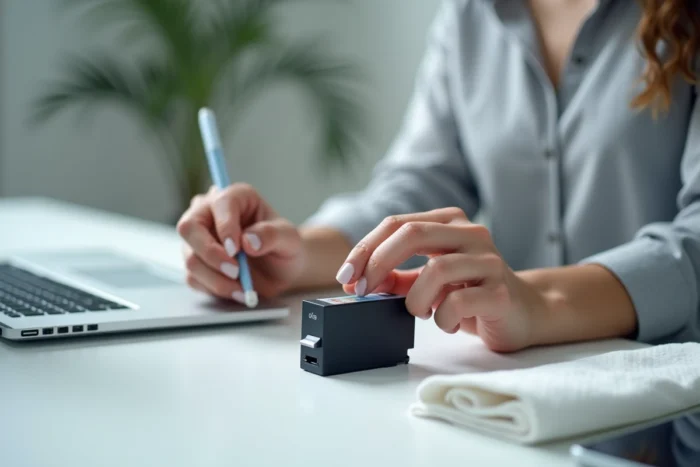
Cleaning contacts before reset: the step that avoids false diagnostics
A significant number of cartridge errors on Canon Pixma printers do not stem from the chip counter but from a detection issue related to the metal contacts. The chip may be perfectly functional, the counter not saturated, yet the printer still displays an error message.
Corrosion, dried ink residue, or fingerprints on the gold contacts are enough to interrupt communication between the cartridge and the printer. Cleaning these contacts before any reset attempt helps avoid mistakenly concluding that a cartridge is defective.
- Use a lint-free cloth or a cotton swab soaked in isopropyl alcohol to gently rub the gold contacts of the cartridge
- Visually inspect the chip for green traces (oxidation) or black deposits (dried ink)
- Also clean the contacts of the carriage inside the printer, often neglected, with the same type of cloth
- Allow to dry completely before reinserting the cartridge (a few minutes is sufficient)
This step takes less than five minutes. It resolves a notable proportion of cases where the error message persists after a standard reset.
Complete power off: a hardware reset more reliable than simple removal
Removing the cartridge and then reinserting it without turning off the printer only partially resets the detection state. The printer retains the cartridge status in volatile memory as long as it remains powered.
A complete power cut clears this temporary state. The protocol recommended by several recent technical sources follows a precise order: turn off the printer using the power button, unplug the power cable, wait one to two minutes, then plug it back in and turn it on before reinserting the cartridges.
This method does not reset the chip counter to zero. However, it forces the printer to fully re-read the data of each cartridge at startup. If the error was due to a transient detection bug (common after a paper jam or an interrupted cleaning cycle), a complete restart is enough to lift the blockage.
Conversely, if the error persists after this procedure and after cleaning the contacts, the problem is indeed at the level of the chip counter or the residual ink level.
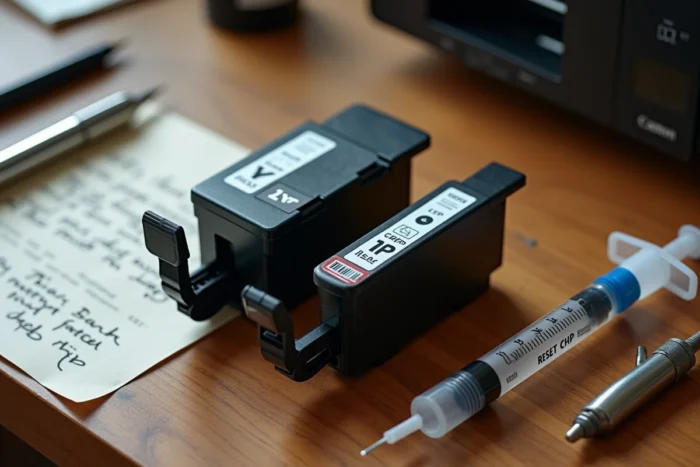
Disable ink level tracking on remanufactured Canon cartridges
On some Canon Pixma printers, a warning message appears after installing a remanufactured or refilled cartridge. This message does not block printing, but it disables the ink level indicator.
The deactivation procedure varies by model, but it is based on a common principle: hold down the Stop/Reset button on the printer for several seconds when the error message appears. This action indicates to the printer that the user agrees to continue printing without ink level tracking.
The direct consequence: no alert warns when the cartridge is actually nearing the end. The risk is to print dry, which can damage the print head on models where it is integrated into the carriage. Visually monitoring print quality (fading, streaks, missing colors) then becomes the only reliable indicator.
Canon Service Tool: software reset for internal counters
Canon Service Tool is a utility intended for technicians, which allows resetting the internal counters of the printer (waste ink absorber counter, page counter). This tool does not directly reset the cartridge chip but can lift certain blockages related to the maintenance counter.
Its use remains limited: it does not cover all Canon models, and the versions available online are not always up to date. For recent Pixma series printers, checking compatibility with the exact model before downloading avoids unnecessary manipulations.
The choice between physical chip resetter, hardware reset by power cut, and software utility depends on the type of blockage encountered. An error message related to the cartridge calls for a chip reset or contact cleaning. A blockage related to the waste ink absorber falls under the Service Tool, not the chip resetter. Confusing the two leads to repeated attempts without results, while the source of the problem is not the same.